PNG versus WebP for motorsport social graphics
When to upload PNG cutouts into F1 Tools, when WebP is fine, and what Instagram actually does to your export.
F1 Tools accepts PNG, JPG, and WebP on upload, and exports finished graphics as PNG (plus PDF for notices). That mix confuses people, so here is how I actually choose formats while making motorsport posts.
Uploads into the editors
| Format | Use when | Watch out for |
|---|---|---|
| PNG | Driver cutouts, logos, anything with transparency | Larger files; fine for one-off edits |
| WebP | Compressed source photos that still look sharp | Some older desktop tools struggle; browsers are fine |
| JPG | Full-bleed press shots with no alpha | Compression halos around helmets on coloured backgrounds |
For Breaking News and Race Winner, transparent PNGs sit on team gradients without a cardboard box of studio backdrop. That single choice does more for “broadcast feel” than any filter.
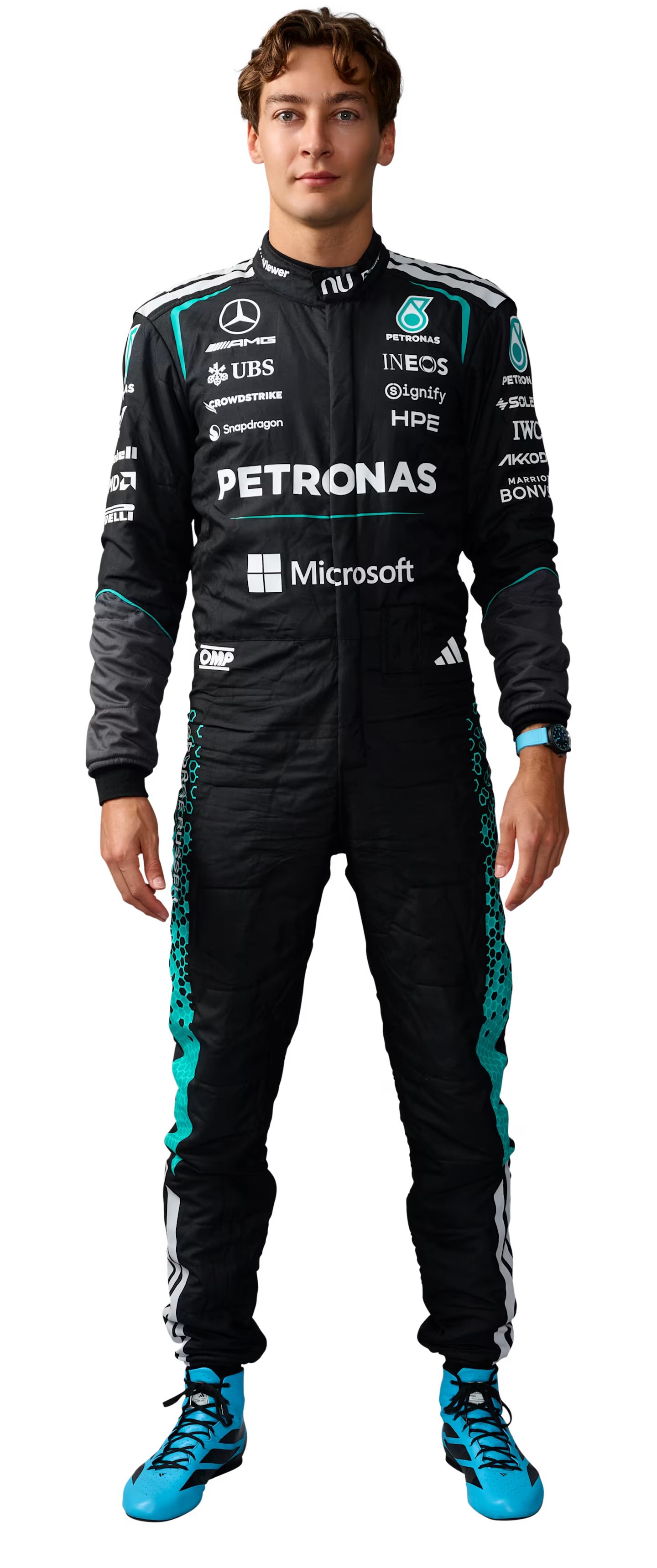
The winner tool’s built-in poses ship as WebP with alpha-friendly edges — a good reference for the look you want from your own uploads.
Exports out of F1 Tools
Exports are PNG because:
- Social apps re-encode everything anyway; starting from a lossless frame preserves edges one more generation
- Transparency is sometimes useful for Discord / overlays even if Instagram flattens it
- Stewards notices need crisp black text on white — JPEG noise shows up immediately
Race Winner goes further and exports at 2× (2160 × 2700) so the PNG still looks sharp after Instagram’s compression pass.
Rough size observations
From my own exports (not a lab benchmark, just a notebook):
- Breaking news PNG with a detailed photo: often 0.8–2.5 MB
- Grid page PNG: often 1–3 MB depending on headshot detail
- Winner PNG at 2×: larger, but the clarity on mobile timelines was worth it in side-by-side checks
WebP uploads that I converted from phone HEIC/JPEG were typically half to a third the size of the equivalent PNG source, with no visible hit on a phone screen.
Practical rule
- Edit with the best cutout you have (PNG if you already keyed it).
- Export PNG from F1 Tools.
- Let Instagram / X / Discord re-encode for delivery.
Do not re-save the export as a low-quality JPEG “to save space” before posting — you pay twice in generation loss.
Related Tutorials
July 16, 2026
Creating an Instagram F1 starting-grid carousel
How to export both F1 Tools grid pages and post them as a single Instagram carousel without awkward crops or mismatched sizes.
July 14, 2026
How to remove the background from a driver photo
Practical ways to cut out an F1 driver photo before dropping it into Breaking News or Race Winner — including what looks good on team colour gradients.
July 18, 2026
How I recreated an F1 broadcast graphic in the browser
A walkthrough of rebuilding a Formula 1 breaking-news card with the F1 Tools editor — team presets, photo framing, and a 1080×1350 PNG export.